Add your photos to your website
Designed art is fine for a week, but your people want to see their church: the baptisms, the kids, the Sunday crowd. Your photo library feeds the whole site. Put your photos in it, then place them yourself or let Aligned match them to the empty spots.
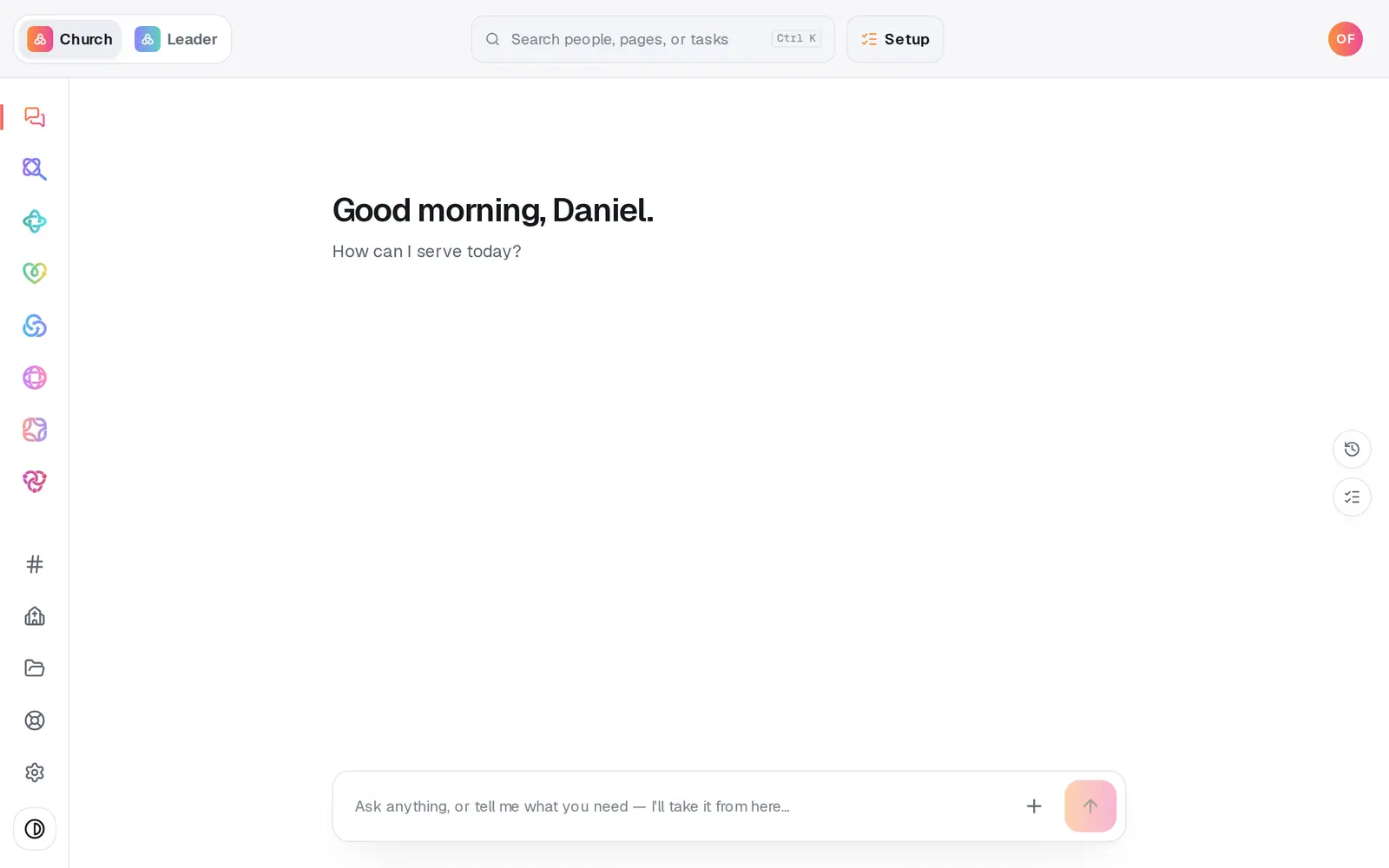
1/7 · Open Website from the left rail
Good to know
- Name files and folders plainly, like “Baptism Sunday” or “Kids ministry”. Aligned matches photos to spots by their names and folders.
- To link a whole OneDrive folder, so photos added to it later show up too, open the OneDrive folders tab in the library.
- For one exact spot, click the photo on your site, then use Choose photo (or Replace) or Upload in the editing card that opens.
- Asking works too: “put the baptism photo on the welcome section”, “place my photos automatically” or “reshuffle the photos” in the Website chat. Aligned asks before it changes anything, and for a single photo it names the exact photo and spot.
- Happy with the designed art in the spots that have no photo? Say “keep the designed art” in the Website chat, and the Publish page stops asking for photos.
If it’s not working
It says “No photos yet.”
Your library is empty. Press Upload, or bring photos in with Google Drive, OneDrive or Your website in the same row. Each photo you add is kept in your library and filed in Files.
It says “Google Drive folders linked before aren't read any more”
That's expected for every church: Aligned no longer reads whole Google Drive folders, and reconnecting Google won't change it. Press Google Drive in the library instead, tick the photos in Google's window, and they're copied into your library.
I don't see Google Drive
Google blocks its sign-in inside the Aligned app and in links opened inside Facebook or Instagram. Open aligned.church in Safari or Chrome and the button is there.
It says “Every photo slot is already filled.”
Every spot already has a photo, and matching never replaces one. To change a photo, click it in the library, pick a spot marked replace under Place in, then press Use photo.
A photo landed somewhere that doesn't fit
Press Undo at the top of Website, or put the right photo there with Place in and Use photo.
My photos aren't on my live site
Photos go live when you publish. Press Publish at the top right, then the publish button on the list of waiting changes.
Next, you might want to
- Change your website's colors, fonts and lookPick a design, set your own colors, choose a hero layout and a headline font, and watch your site change as you click.
- Change your website by telling Aligned what you wantAsk for a warmer homepage, a new page or giving moved higher, see exactly what changed, and publish it when you're happy.
- Rebuild your current website on AlignedGive Aligned your current site's address and get a new site built from it, with your logo, colors, photos, pages, words and blog posts.
- Publish your website and share itCheck your site on a phone, see what's ready, pick your address, go live, and share the link or QR code.