Change, test or pause an automation
Plans change — the report should go to someone else, or the wording needs a warmer touch. You can change an automation's steps (your daily brief's delivery is the one exception), try it on yourself before anyone else sees it, and pause it whenever you need to, without starting over.
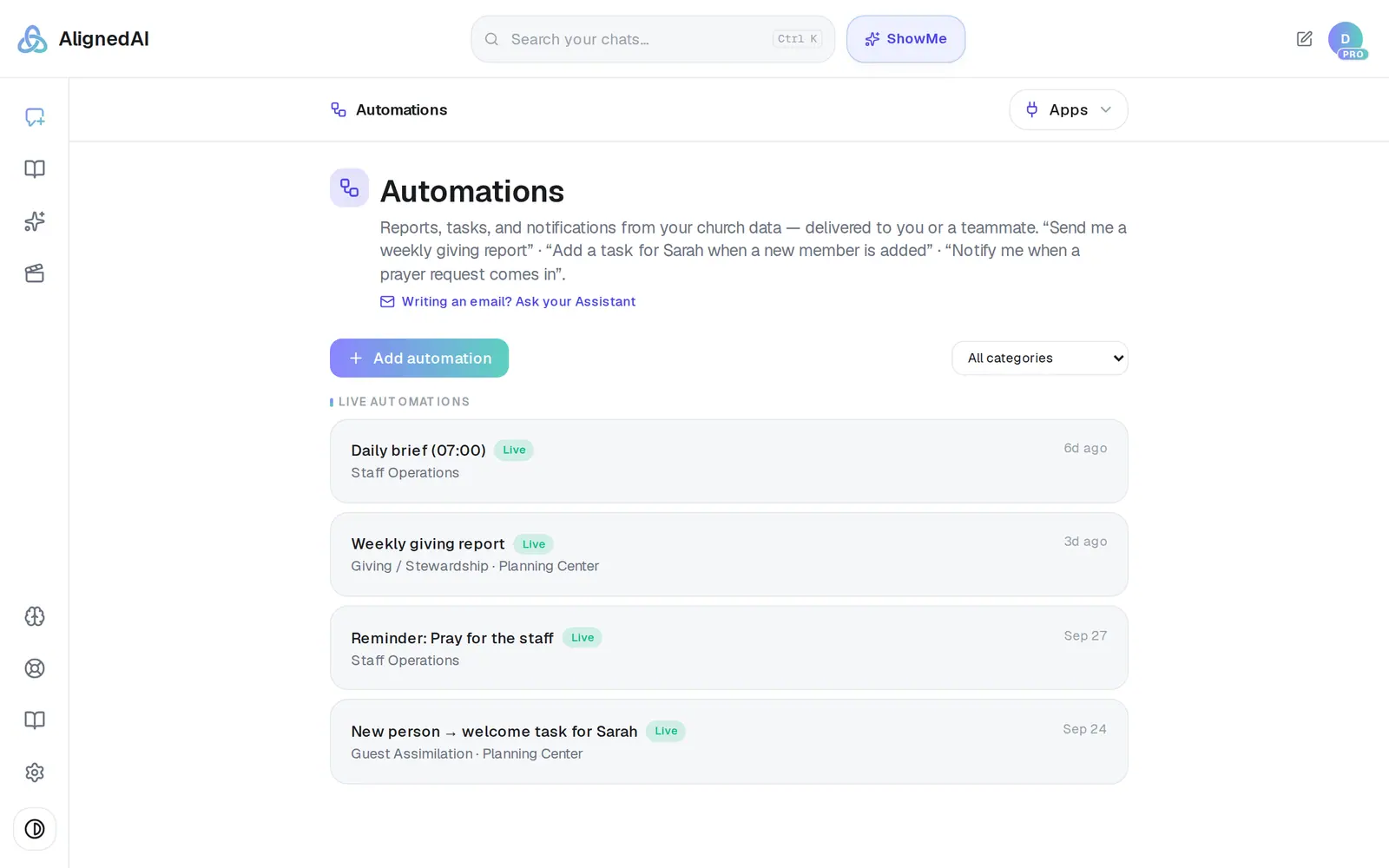
1/7 · In Automations, tap the automation you want to change
Good to know
- Rather describe the change? Press Edit with AI at the top and type it — “Add a 3-day wait, then send a follow-up text.” The automation reloads with the change made.
- Add step, between two steps, adds a notification or a reminder task. Other kinds of step come from the builder's draft or Edit with AI — you can change those, but Add step can't add them.
- The trash can on a step removes it, after asking first. An automation needs at least one step.
- Recurring reminders you set in your Assistant are listed in Automations too, and pause and resume the same way.
If it’s not working
“Pair your phone (SMS with your assistant) to receive SMS step tests.”
A text step's test goes to your own phone, so pair it first: in your Assistant, press SMS (on a phone, Texting (SMS) in the ⋯ menu). Pairing a phone is a Pro feature. Then press Test step again.
The test says “Fix this before publishing: …”
The test found something publishing would refuse, and it names each problem. Fix those steps, then test again.
Edit with AI says “I couldn't apply that change cleanly…”
It couldn't make that change cleanly, so your automation is exactly as it was. Say it another way, or change the step yourself.
“The automation changed while it was being edited. Please retry.”
Someone else changed it at the same moment. Make your change again.
I pressed Delete automation, but it's still in the list
Only the church's owner can delete an automation. For anyone else nothing is deleted, even though the screen goes back to the list. To stop it in the meantime, an owner or admin can press Pause — then ask the owner to delete it. If you're the owner, the app it uses may not be reachable right now, so try again shortly.
Next, you might want to
- Check or fix an automation that didn't runFind out why an automation didn't send, reconnect the app it relies on, and approve runs that are waiting on you.
- Put a weekly report or task on autopilotBuild your first automation — a Monday giving report, a heads-up when someone gives for the first time, or a task for a teammate.
- Set reminders and to-dos with your assistantGet reminded to call, pray or follow up — once or on repeat — and keep a to-do list in Saved Work.
- Connect Zapier, Make or n8nLet Zapier, Make or n8n start one of your automations — your website form, a sign-up sheet, any app they reach.