Choose which notifications and emails you get
Some notices you want the moment they happen; others you'd rather never see again. You can mute a whole kind of notification from the bell, stop the weekly sermon emails in Settings, and still get everything that matters about your account.
About 3 minutes Works on the free planUpdated October 6, 2026
aligned.church/leader
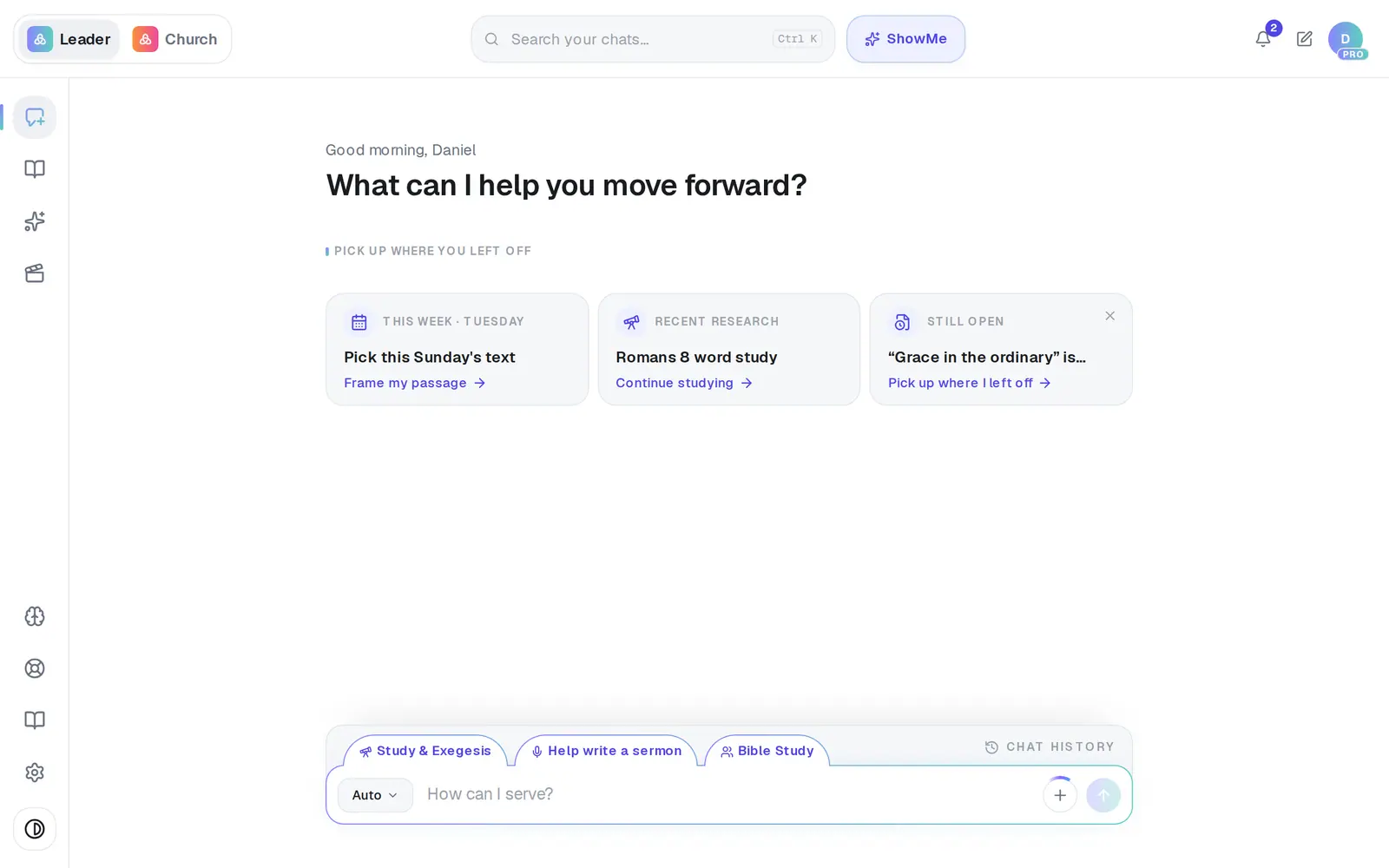
1/6 · Open the bell at the top-right
Good to know
- Every other product email from us has an Unsubscribe link at the bottom. Tap it and press Unsubscribe on the page it opens to stop all of them — no sign-in needed. There's no switch for those in Settings. The link in a weekly sermon email stops only those emails, and the one in your daily brief pauses only the brief.
- Emails about your account keep coming whatever you choose: receipts, sign-in codes, invitations from your team and replies from us.
- Muting is yours alone. It doesn't change what your staff get.
- The × on a notice dismisses only that one, without muting its kind.
If it’s not working
There's no bell
Nothing is waiting for you, so the bell hides. To bring back a kind you muted, use Settings → Account → Muted notifications.
I muted something by accident
Open Mute… in the bell again — muted kinds show as Unmute chips there — or press Unmute in Settings → Account.
I turned off the weekly emails and still get email from Aligned
Account email (receipts, codes, invitations, replies from us) always comes. For other product email, use the Unsubscribe link at the bottom of it.
An older notice is gone from the bell
The bell keeps your 30 most recent notices, so older ones drop off on their own.
Did this help?
Next, you might want to
- Turn on notifications on your phoneGet your reminders, your morning brief and a nudge to finish a draft on your phone — and fix them when they don't arrive.
- Keep your church's information privateWhat stays private to you, what your staff can see, and the privacy switches you control.
- Get a daily brief every morningTurn on a short morning summary of your calendar, to-dos and church numbers, and choose what goes in it.
- Switch between light and dark modePick the look that's easiest on your eyes, and have it follow you to every device.