Bring in files from OneDrive, Google Drive or ChatGPT
Years of manuscripts and policies are already sitting in a folder, and maybe a year of thinking is in ChatGPT. From OneDrive you can bring them across in a few taps. Aligned can't browse Google Drive, so files kept there come in by downloading them and uploading them.
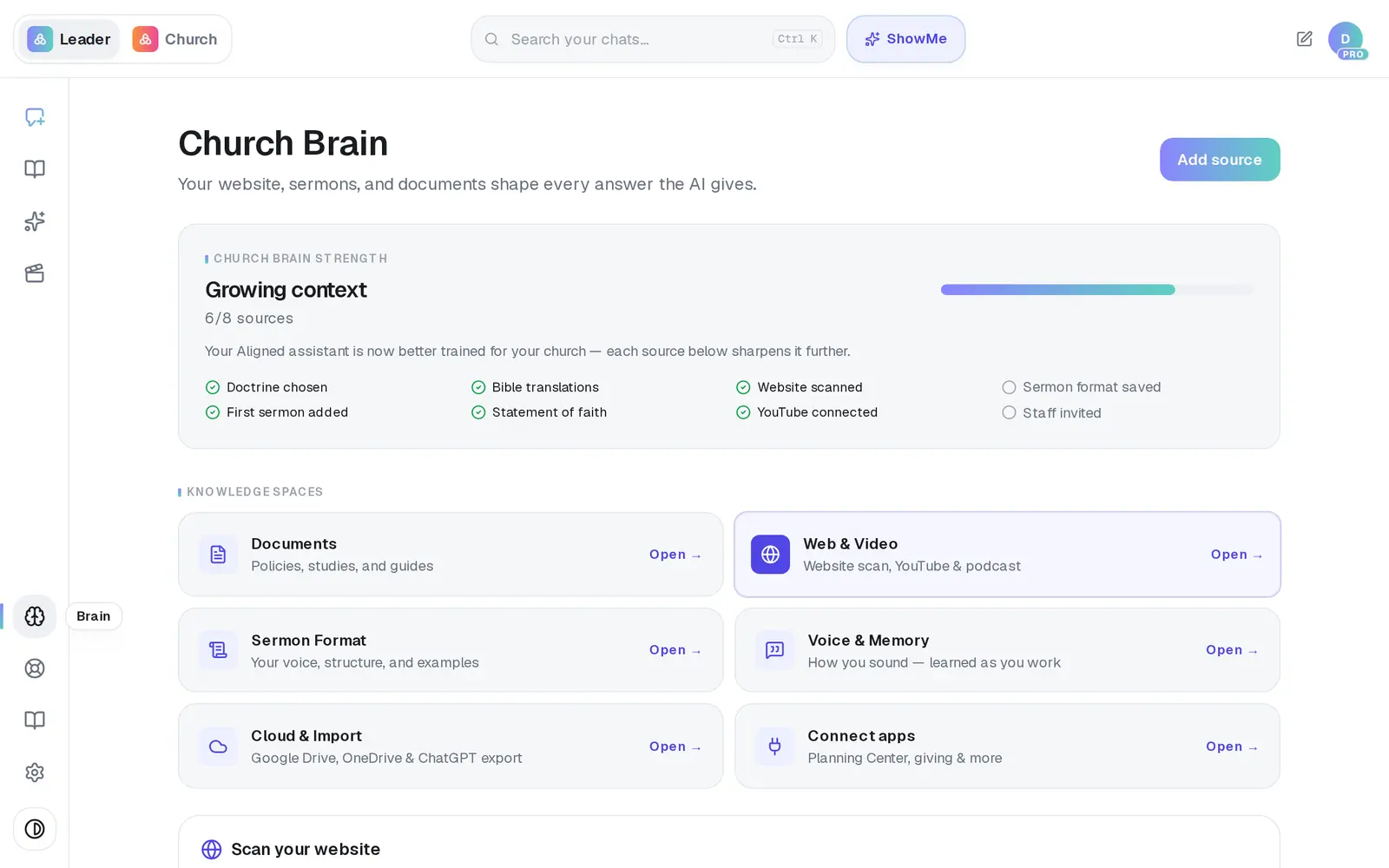
1/4 · In Brain, open Cloud & Import
- 2Press Connect OneDriveYou sign in with your Microsoft account, allow access, and come straight back to the Church Brain. If Outlook is already connected for your assistant, OneDrive is ready without signing in again.
- 3Tick the folders and files you wantTick a folder to bring in everything in it, or tap a folder's name to open it and pick single files. Your ticks carry across folders, and the line at the bottom counts them.
- 4Press Add to brainIt reports as it goes — “Adding to your brain… 3 in so far” — then says how many files went in, and each one appears under Documents. One import takes a limited number of files: if it says you selected more, tick the ones not in Documents yet and press Add to brain again.
Good to know
- Files in Google Drive: open the file in Drive and choose File → Download (a Google Doc downloads as Word or PDF), then add it under Documents with Upload files. Files you imported from Google Drive before October 2026 stay in your brain.
- OneDrive lists only the files Aligned can read: PDF, Word, RTF, text, Markdown and HTML. An empty folder view means nothing importable is in it.
- Importing the same file again refreshes it — it doesn't make a second copy.
If it’s not working
The Google Drive card says browsing your Drive isn't available
That's expected for every church, and reconnecting Google won't change it: Aligned no longer browses Google Drive. Download the files from Drive and upload them under Documents, or import them from OneDrive.
It says “You selected more than … at once”
The first ones already went in. Tick the files that aren't in Documents yet and press Add to brain again.
It says “The connection dropped while importing”
Whatever finished is already in. Check Documents before adding those files again.
ChatGPT says “File too large”
Unzip the export, then upload the conversation files from inside it (they end in .json) one at a time, instead of the whole .zip.
ChatGPT: “No conversations with content were found in that export.”
Very short conversations are skipped, so an export of only quick chats can come back empty. Make sure you chose the .zip from OpenAI's email, or the conversations file inside it.
Next, you might want to
- Upload your statement of faith and documentsAdd your beliefs, policies and manuscripts so Aligned draws on them, and choose which ones your website may quote.
- Add a file, link or voice note to a messageAttach a PDF, Word file or photo, paste a web link, or talk instead of typing — then ask Aligned about it.
- Make Aligned sound like youGive Aligned your website and your sermons so every draft sounds like you and believes what your church believes.
- Connect your email and calendarLink Gmail or Outlook so your assistant can read and add to your calendar and send email from your own address — or share only your calendar.