Keep a private journal
Not every thought is ready to be a sermon yet. The Journal is a private place to write, talk or snap a photo of your notes. It's yours alone: nothing in it goes into your Church Brain or your drafts unless you choose to use it.
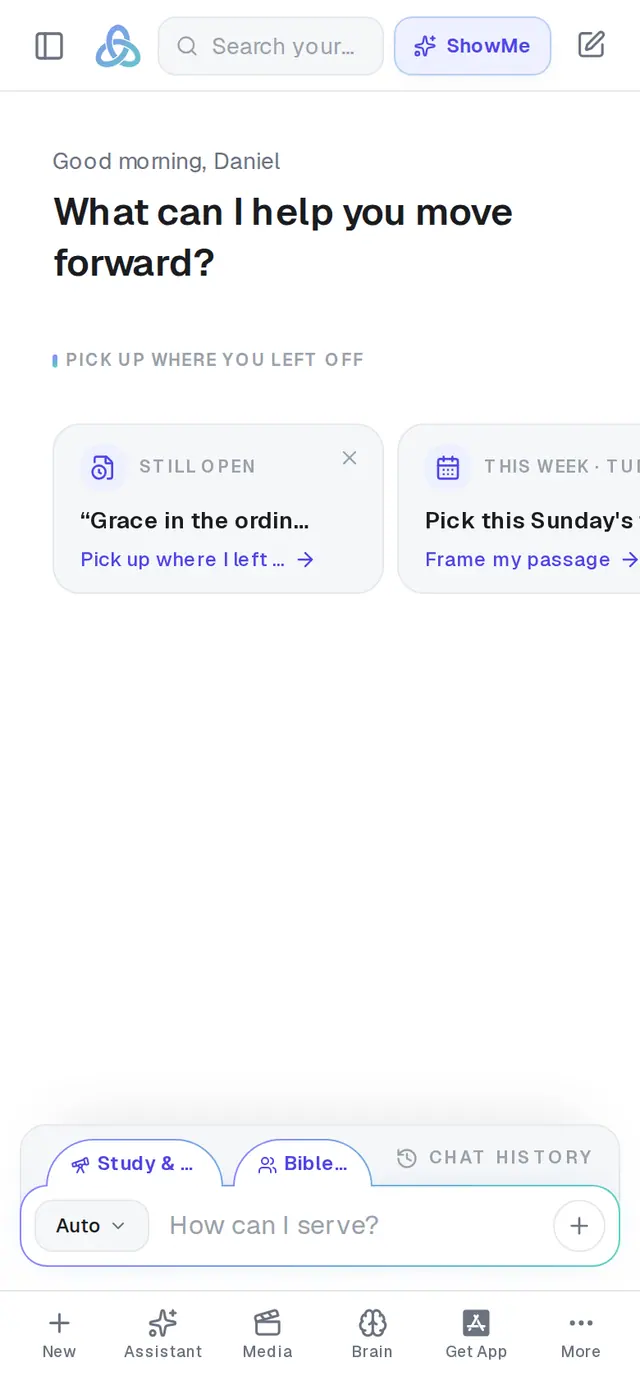
1/7 · Tap More at the bottom of the screen
Good to know
- On the Journal page, Record starts a new entry from a voice note, and Photo turns a picture of handwritten notes into a new entry — it reads the writing and names the entry from its first line. On a phone, Photo can open your camera. Inside an entry, the picture icon at the top adds a photo to it, and right after you add one, Extract text under the photo copies its writing into the entry.
- A voice note can be as long as you like. Tapping the ✕ while you record asks first: Save it, Keep recording or Discard recording.
- Ready to preach it? Turn into at the top of an entry makes it a sermon, devotional, Bible study, book chapter and more. The entry stays in your journal.
- There's no download for the journal. To keep an entry somewhere else, copy its text out by hand.
If it’s not working
I can't find the trash on my phone
Open the entry and tap the trash at the top-right. The trash on a card in the list only shows when you hover over it with a mouse. Deleting is immediate: there's no confirmation and no undo.
It says “Couldn't transcribe that photo”
Reading the photo didn't work that time. Wait a moment and try again. If it says “We couldn't read any text in that photo” instead, the picture was the trouble: take it again with the page flat, bright and filling the frame. If it says “Couldn't save that photo's text to your journal,” the writing was read but no entry was made: tap Photo and try again.
Extract text isn't under my photo
It's offered only right after you add a photo, while the entry is still open. To pull the writing out of a picture later, use Photo on the Journal page — it makes a new entry from the text.
The top of my entry says “Not saved yet — trying again…”
The last save didn't go through. Aligned tries again every few seconds while the entry stays open, and what you wrote stays on screen, so leave it open until it reads Saved. If it never does, copy what you wrote somewhere safe before you close the entry. A very long title can't be saved, so shorten it if yours is long.
It says “Voice note not saved yet” at the top of my journal
Your words didn't make it into an entry — the journal closed, the page reloaded, or the save didn't go through — so Aligned kept them in this browser tab. Tap Save as a new entry, or Add to the entry you recorded it in. Discard asks once more before it lets them go. Closing the tab or signing out clears them, so save them first.
Next, you might want to
- Turn journal reflections into a sermonStudy the Scripture behind an entry, then turn one or more entries into a sermon, study or book chapter.
- Find your way around on your phoneThe bar along the bottom, the More menu and its search — where everything in Aligned lives on a phone.
- Write a book one chapter at a timeStart a book, write its chapters with Aligned, and keep them together in one place.