Make graphics look like your church
Graphics that could belong to any church don't feel like yours. Set your colors and a look for each ministry once, point Aligned at your own photos, and every graphic starts from there — for everyone on your team.
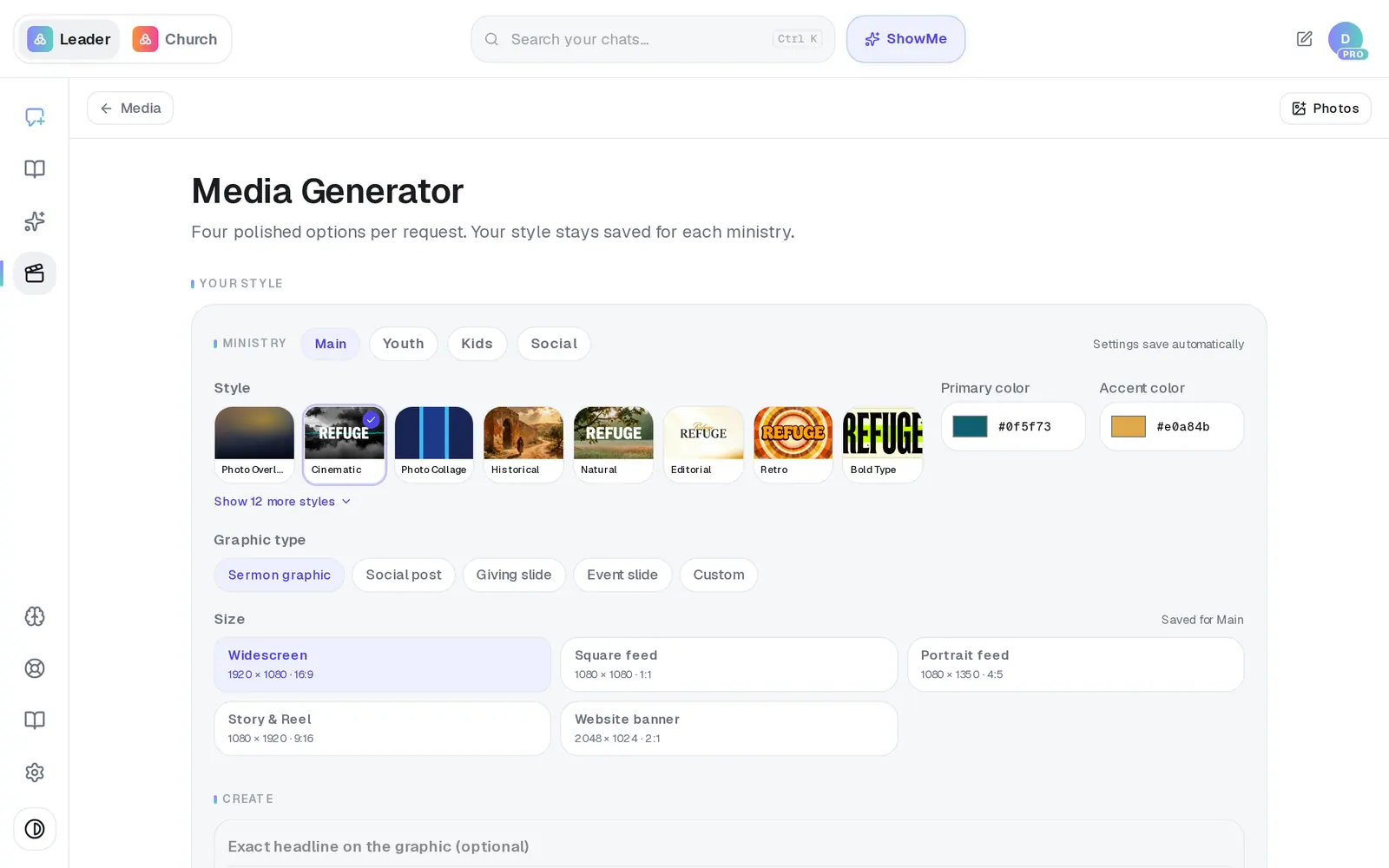
1/6 · In Media → Media Generator, pick the ministry you're designing for
- 6Tick whole folders, then press Use selected foldersYou pick OneDrive folders, not single photos. They appear under Photo folders in use, where the trash icon removes one.
Good to know
- These looks belong to your church, not to you alone: when a staff member changes the Youth colors, they change for everyone.
- Rename photos before you upload them. "IMG_4821.jpg" will never be matched; "easter-sunrise-service.jpg" will.
- The Photo note on a library photo helps elsewhere in Aligned, but the Media Generator only reads the file name.
- Big camera photos are fine — they're shrunk before they upload. Photos you upload never count against your free pictures.
If it’s not working
I uploaded photos but I don't see Auto-match photo
The photo buttons appear once your library has a photo or a OneDrive folder is in use; until then the row shows Add church photos. Just uploaded them from Photos at the top? Close Media Generator and open it again. Your library photos are offered first.
It ignored my photos
Almost always the file names didn't match the request. Matching reads the name only — rename photos to say what they show, or skip matching and use Choose a photo.
It says “Couldn't save — retry”
Your last change to the look didn't save. Tap it and it saves again.
A red message shows under the folder list instead of my folders
Aligned couldn't read your OneDrive: it didn't answer, or it wasn't given permission to your files. Press the refresh arrow above the list first. If the message stays, connect the account again and allow everything it asks for: in Settings → Connections, type Outlook in the search box under Add an app and choose Outlook (Microsoft). That replaces the old connection without switching anything else off. Then open Photos → Connect a Drive again. If it says Google Drive photo folders aren't available, that's expected — upload those photos to Your library.
It says “No photo folders here.”
The folder you opened has no folders inside it. Go back up a level and tick that folder itself.
Next, you might want to
- Make a sermon graphicGet four finished options for a sermon slide, social post, giving slide or event graphic — in your church's style.
- Put a QR code on a graphicAdd a code for giving, sign-ups or a connect card to any graphic — saved once, and stamped on sharp enough to scan.
- Save, download or find a graphic you madeKeep the option you like, download it, make a fresh batch, and find every graphic your church has saved.