Meet your personal assistant
Plenty of ministry is the reminder you meant to set and the email you meant to write. Your assistant is one ongoing conversation, just for you, that handles that kind of thing when you ask in plain words. It's free on every plan, and nothing reaches another person until you press the button that sends it.
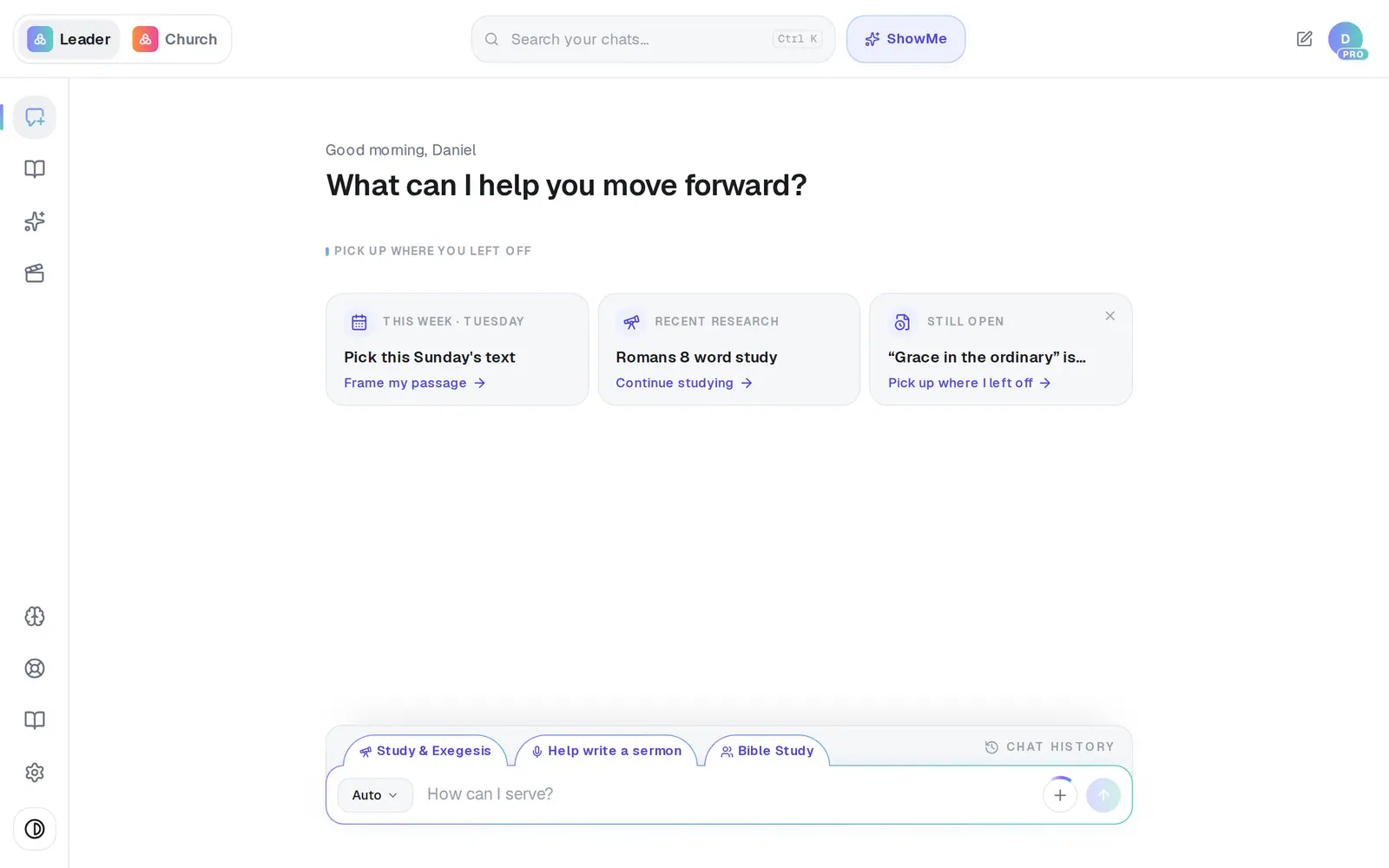
1/5 · Open Assistant from the left rail
Good to know
- Talking to your assistant never uses the free plan's 200 requests a month — ask it as much as you like.
- When it answers, it reads back your last 12 messages — about six back-and-forths. In a long conversation, repeat the detail that matters.
- It reads words only. A file or photo you send in the assistant opens in a regular chat instead, which can read it.
- On Pro, the first time you open it a short welcome offers three optional steps — text your assistant, connect your email and calendar, connect your church apps. Press Get set up, or Maybe later; everything in it is under Connections any time.
If it’s not working
I never saw the welcome window
That's normal. It shows once per browser, and only for churches on Pro. Everything in it is under Connections in your assistant.
It keeps bringing up something from weeks ago
Clear its history with the trash can (the last step). Your reminders, daily brief and automations aren't affected.
It says “I couldn't finish that one just now. Try again in a moment.”
The answer didn't come back in time. Press Try again under it — it sends the same message again, and it isn't saved twice.
It says “Files open in a regular chat — the Assistant can't read attachments yet.”
You attached a file or photo, or pasted something very long. It opened in a regular chat, which can read it. Ask your assistant in words instead.
It says “Create a free account to use your Assistant.”
You're browsing without an account. Sign up — it's free — and your assistant is ready straight away.
Next, you might want to
- Connect your email and calendarLink Gmail or Outlook so your assistant can read and add to your calendar and send email from your own address — or share only your calendar.
- Get a daily brief every morningTurn on a short morning summary of your calendar, to-dos and church numbers, and choose what goes in it.
- Set reminders and to-dos with your assistantGet reminded to call, pray or follow up — once or on repeat — and keep a to-do list in Saved Work.
- Have your assistant write and send an emailTell your assistant who it's for and what to say, check the draft it writes in your voice, and send it from your own mailbox.