Add an event to your calendar
People can't show up to what they never heard about. Every event you add lands on one church calendar, and the ones you mark public can show on your website too.
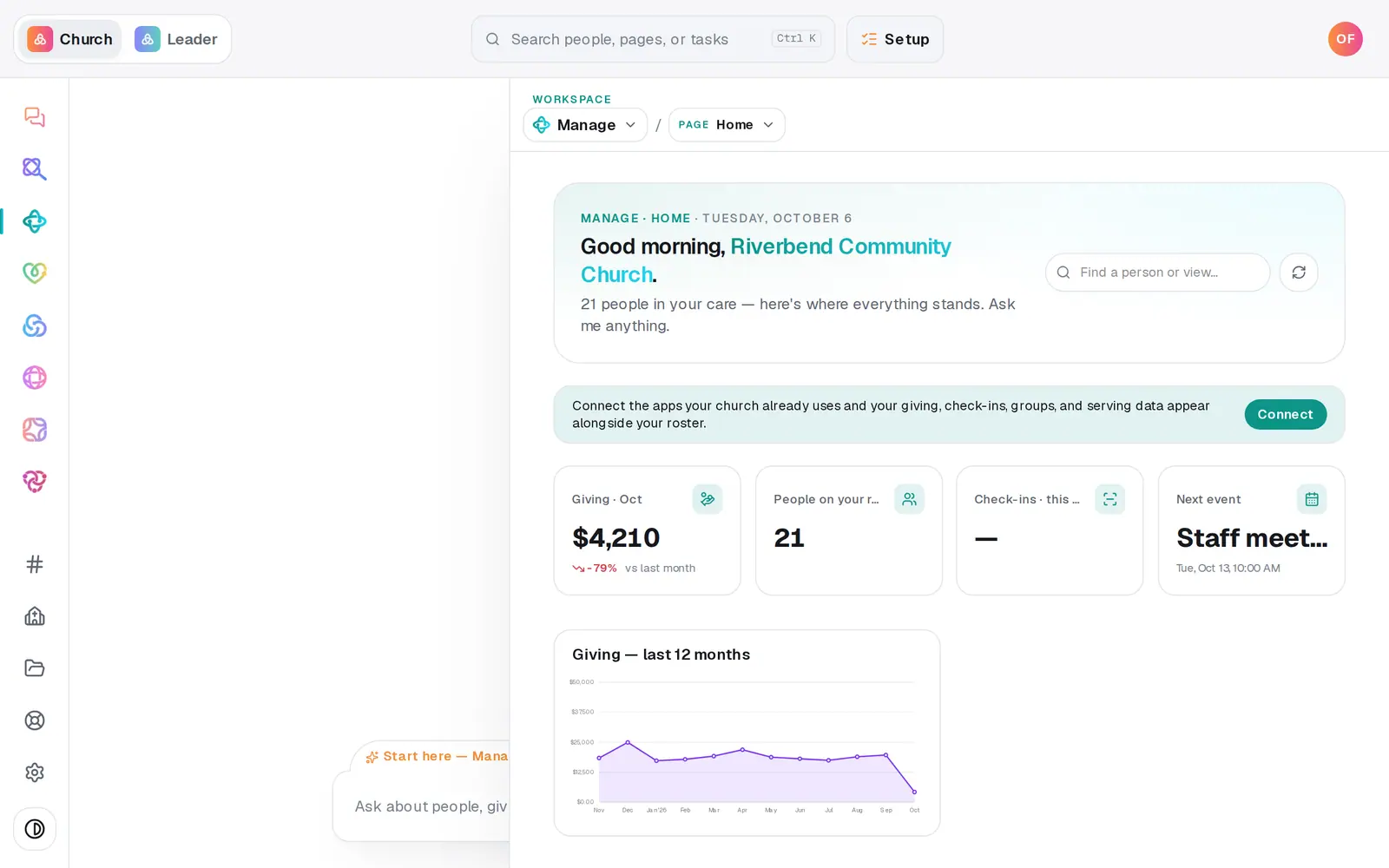
1/7 · In Manage, choose Calendar from the page menu
Good to know
- To change an event later, switch to List and press Edit on its row. Moving the date or time keeps the event the same length. (Clicking a day on the grid always starts a new event.)
- Add a picture with Add a photo while you create the event, or later in Edit. A photo you drop into the chat goes to your image library instead, not onto the event.
- Book a room or a projector under Rooms & resources: press + Add a room (it reads Manage once you have one), name it and press Add, then pick the event under Book for: and tap the room. If two events want it at the same time you'll see a warning, but nothing is blocked.
- You can also ask in the chat, like “Add youth night every Friday at 7pm in the youth room, put it on the website.” If the name or the time is missing, Aligned asks for that and nothing else.
If it’s not working
I can't find how to put an existing event on the website
Switch to List, press Edit on the event, turn Show on public site on or off, and press Save. Or ask in the chat, like “put the potluck on the website” or “take the potluck off the website”.
How do I cancel an event?
Switch to List, press the × on the event's row, and confirm. Deleting can't be undone, and a public event comes off your website's calendar too.
The calendar won't go back to last month
The month view starts at the current month, because events that have already happened drop off. Use List to see everything coming up.
Some events have no Edit button
Events that come from a connected app, like Planning Center, show “read-only” and can't be edited here. Change them in that app, and the change shows up here after the next sync.
Next, you might want to
- Take registrations for an eventOpen a signup with a spot limit and your own questions, share its link, and close or reopen registration any time.
- Show your calendar on your website or phonePut events on your Aligned website, share one event's page, and subscribe to the church calendar in Google, Apple or Outlook.
- Schedule volunteers for SundaySet up serving teams, ask people to serve on a date, see who confirmed, and plan around the weeks people are away.
- Plan your order of service and songsBuild Sunday's run sheet from last week's, print it for the team, and keep a song library whose chords change key on the spot.