Bring over Planning Center lists and workflows
Your lists and follow-up workflows took years to build. Lists come across from Planning Center with the same people on them, and the workflows that don't come across can be pasted in. Aligned rebuilds them as automations that stay paused until you've checked them.
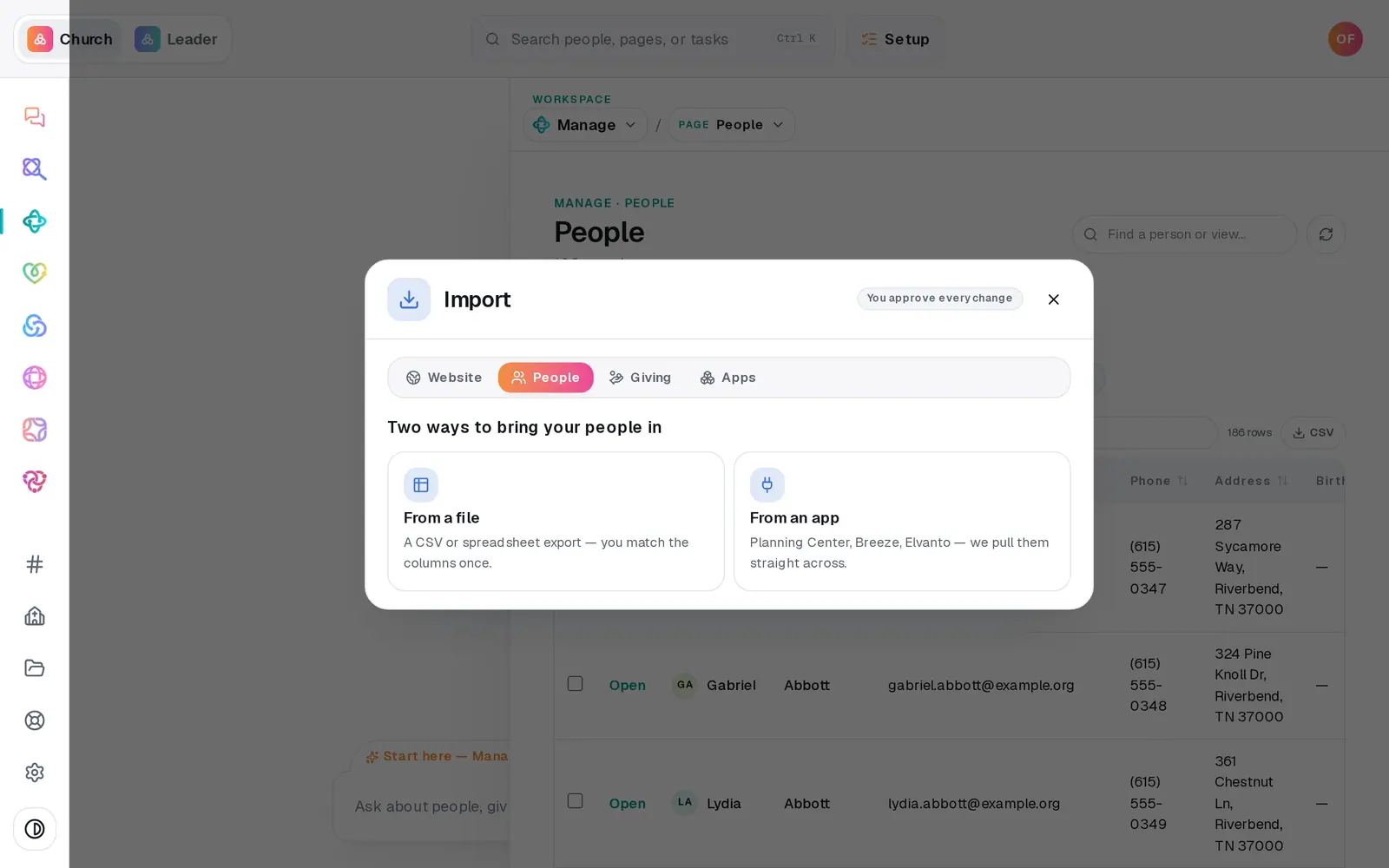
1/7 · In Import, choose the Apps tab
Good to know
- An imported list has no rule to edit. It holds exactly the people who were on it. To refresh it, import again: the list with the same name is updated in place.
- Any automation can be changed before you turn it on: open it from Automations and adjust the trigger, the steps or the wording.
- Don't have your old workflows written down? Describe them in a sentence or two, like “when someone new comes, email them and remind me to call”, and paste that.
If it’s not working
A list was skipped
None of its people are in Aligned yet. Import People from Planning Center, then import the lists again.
A big list came across short, or some lists are missing
One run brings a limited number of lists, and a limited number of people from each one, and running it again doesn't reach any further. Message us from Help for the rest.
It says “Nothing imported yet”
None of what you pasted could become an automation, and each name is listed with the reason beside it. If it needed more detail, add the steps under that name (what happens, and when) and press Rebuild them here again.
It says “I couldn't read those follow-ups”
Nothing was created that time. Press Rebuild them here again, or paste fewer at once.
Our automation emails aren't sending
Automations that came in this way start paused. Open Automations and press Turn on on each one you've checked. Once it's on, it only acts on things that happen after that. If Automations shows “Email steps can't send yet”, use the fix in that banner.
Next, you might want to
- Bring your people over from your old systemConnect Planning Center, Breeze, Elvanto or Church Community Builder and bring your people across, with their families, groups and events, approving every change.
- Put follow-up on autopilotStart from a ready-made recipe, like a welcome text or a prayer alert, and turn on your first automation.
- Change, pause or delete an automationEdit what an automation says or does, pause it for a season, or delete it for good.
- Make a list you can email or textBuild a saved list, like this fall's new visitors, that keeps itself up to date and is ready whenever you email or text.