Build your own automation
The recipes cover the usual follow-up, but every church has its own: tell the welcome team when someone registers for a signup, or send a thank-you email when someone fills out a form. The builder turns that into a rule you can read as a sentence before it ever runs.
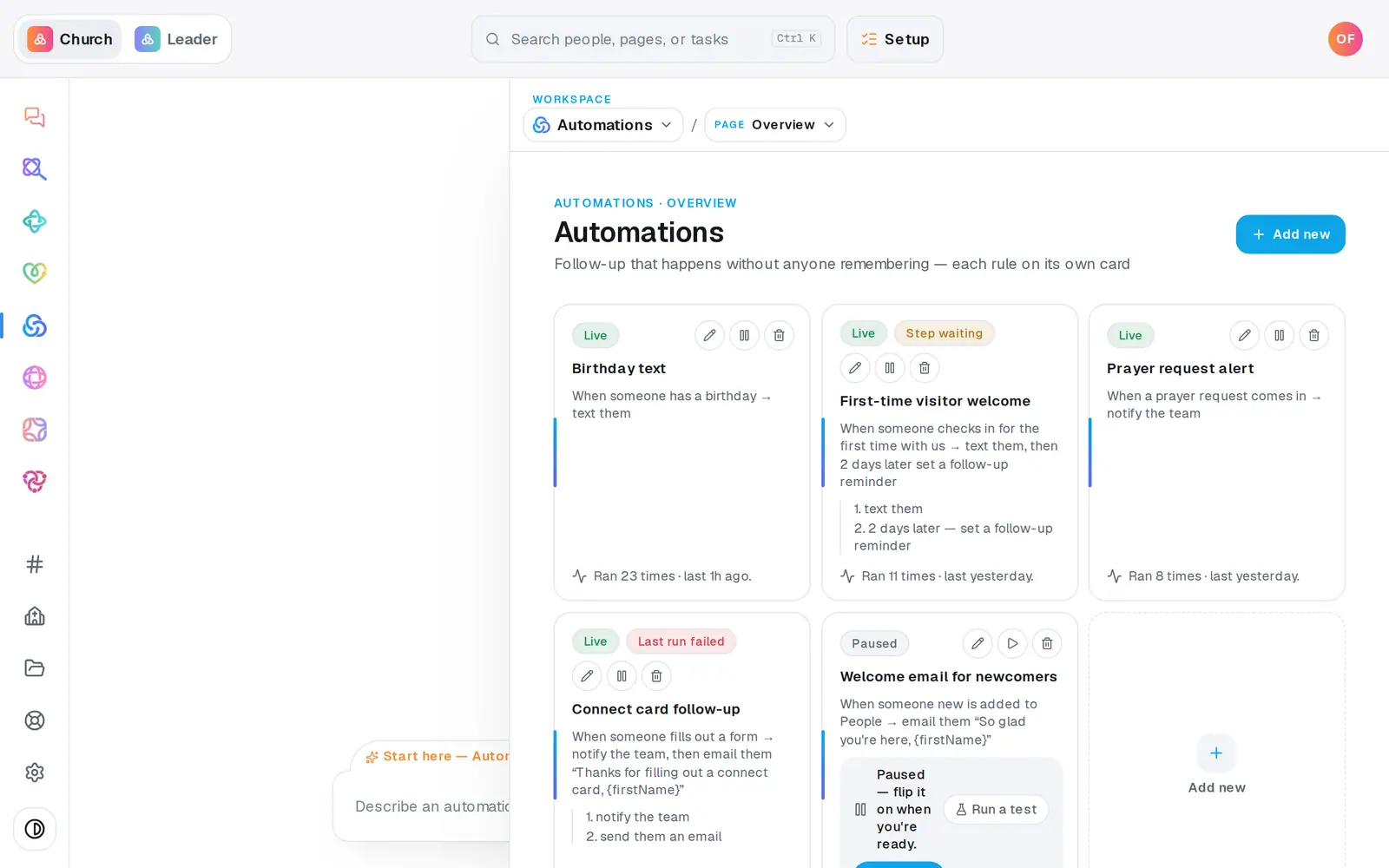
1/6 · In Automations, press Add new
Good to know
- Rather describe it? On a blank builder, press Ask AI to do it and finish the sentence in the chat. Anything the chat builds starts paused, so nothing sends until you turn it on from its card.
- Connecting Zapier, Make or another system? Choose another app sends a webhook as the trigger and save. The URL and secret to paste into the other app are under Connected apps, behind Inbound webhooks. Saving one makes a real address and secret, so it waits until your church has finished setup, even with Save without turning on.
- Text steps can be up to 450 characters, and people who opted out are never texted. Email steps need Aligned Email or your church's Gmail or Outlook connected.
- Want to see it work before you turn it on? Press Run a test under the steps. It shows step by step what the rule would do for one recent match, or with you standing in, and nothing is sent or saved.
If it’s not working
The action I want is greyed out
Steps that do something to a person, like texting them, emailing them or adding a note, need a trigger about a person, and say so under their name. An event is added to the calendar isn't one, so pair it with Notify the team or Draft a social post.
Turn it on stays greyed out
Every step needs filling in. The line beside the buttons says what's left, like “Write the text.”, and that card says it too. If you added a condition, give it a value or press Remove condition.
The other app says its webhook was unauthorized
It has to send the secret with every request. In Connected apps → Inbound webhooks, press Reveal secret and copy it again, or press Regenerate if it may have leaked. The old secret stops working immediately.
It says “Ready to make this live?”
Turning an automation on waits until your church has finished setup. Press Setup at the top of the screen and finish it. Meanwhile Save without turning on keeps your work, paused, except for an automation that starts when another app sends a webhook: that one waits for setup even to save.
Next, you might want to
- Put follow-up on autopilotStart from a ready-made recipe, like a welcome text or a prayer alert, and turn on your first automation.
- Test an automation before it goes liveSee who an automation would have caught last week, watch what it would do, and send its email or text to yourself before you turn it on.
- Check whether an automation ranSee what your automations did today, what they skipped and why, and what to fix when one didn't fire.
- Message your staff in team chatPost to your whole staff, make channels for smaller teams, and hand a request from the chat to Aligned with one tap.