Change many people at once
The membership class just finished, or an import brought everyone in as visitors, and changing twenty people one at a time isn't how you want to spend the afternoon. Tick them on the People table and one bar makes the change for all of them. If it wasn't what you meant, Undo puts it back.
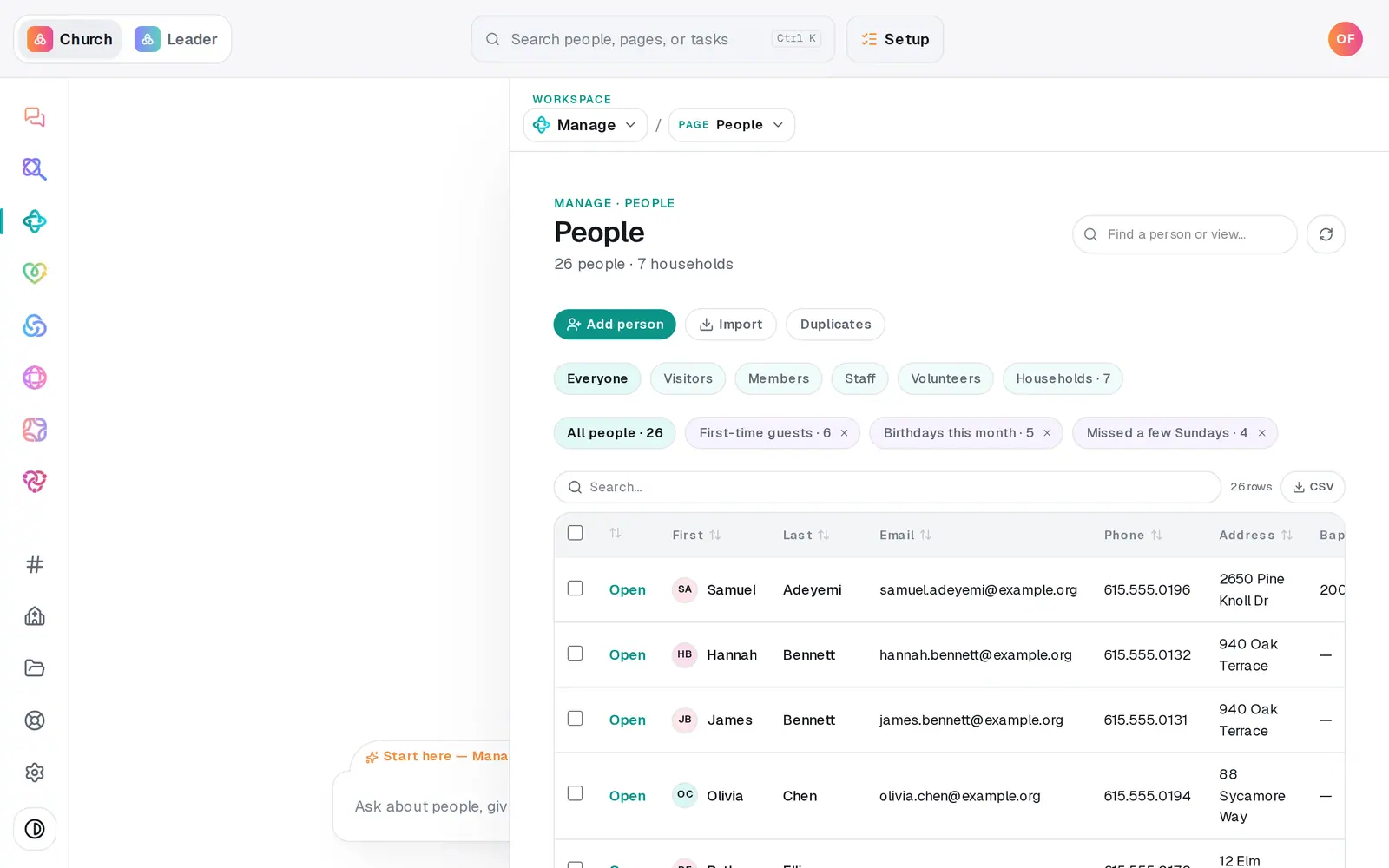
1/5 · On People, narrow the table to the people you mean
Good to know
- One bulk change covers up to 200 people. For more, narrow the table and do it in batches.
- The chat can do it by description: “mark everyone added in the last 30 days as visitors”, or “move everyone in Sarasota to the North campus” (the campus has to exist first). Changes to many people always wait for you to press the button in the reply, and the reply offers Undo this afterwards.
- Starting a follow-up plan has no Undo. Take anyone out on the Follow-ups board with the ✕ on their card.
If it’s not working
It says “Bulk actions cap at 200 people at a time — narrow the selection.”
Too many people are ticked. Use a list chip or Search… to narrow the table, and do it in batches.
It says “Stopped early on an error — running it again is safe (already-done people are skipped).”
An error stopped it partway through adding people to the follow-up plan, so some may not be in it yet. Tick the same people and add them again. Anyone already in the plan is skipped.
Some rows have no checkbox
A row with a lock lives in a connected app, so change it in that app instead.
My ticks disappeared
Switching to a different saved list clears them, so nothing changes for people you can no longer see. Pick the list first, then tick.
Next, you might want to
- Update someone's details or statusFix a phone number or a name right in the People table, mark someone a member or a visitor, and add your church's own word for it.
- Archive or restore a personTake someone who moved away off your roster without deleting a thing, and bring them back if they return.
- Follow up with every newcomerSet up a newcomer follow-up plan, put new people in it, and move each person through the steps until they're connected.
- Make a list you can email or textBuild a saved list, like this fall's new visitors, that keeps itself up to date and is ready whenever you email or text.