Get your sermon into Word or Google Docs
Word for your final polish, or Google Docs for your worship team: the Export button at the top of the canvas hands your draft to either one, with its headings and lists intact.
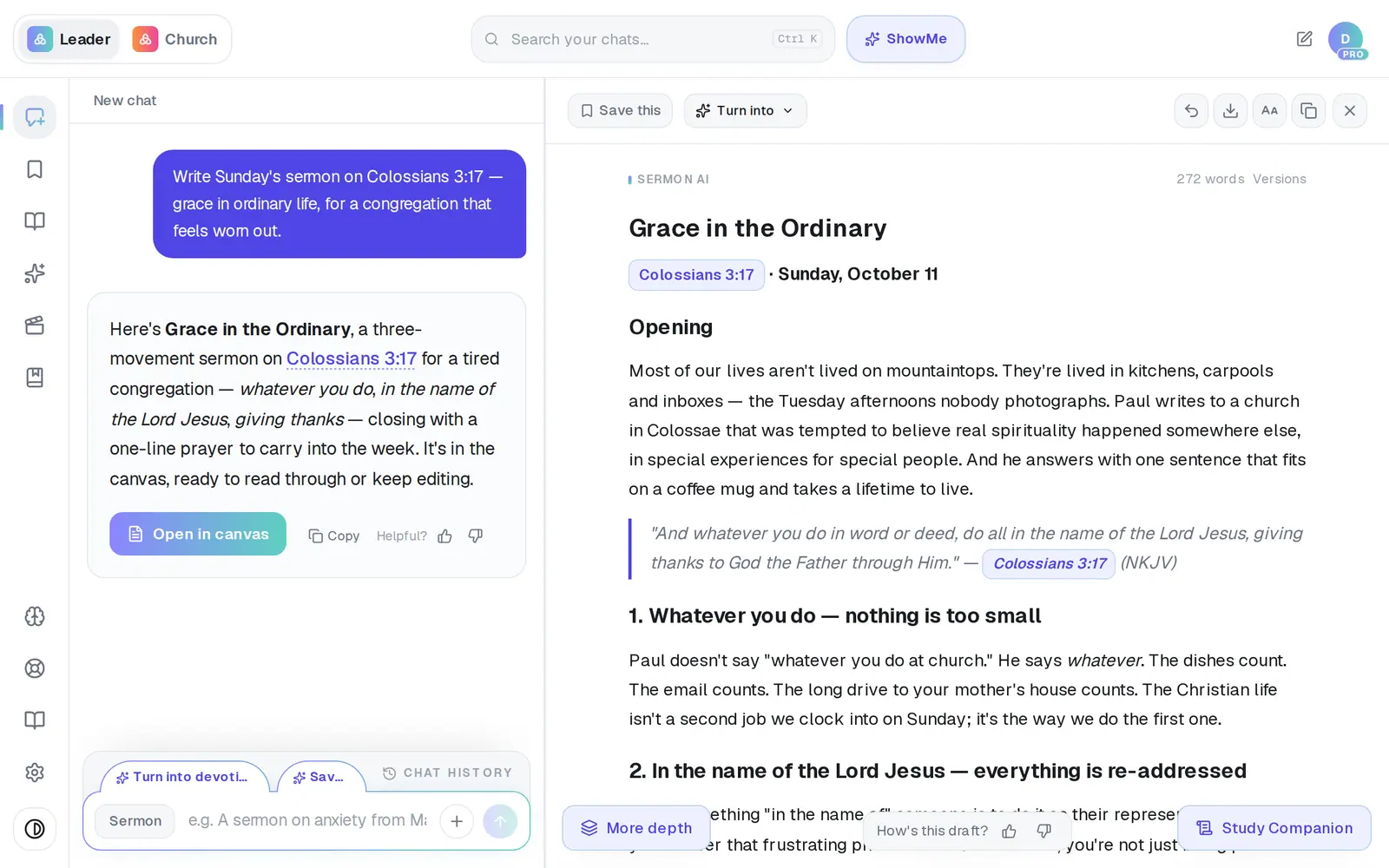
1/4 · Tap Export at the top of the canvas
Good to know
- There's no PowerPoint export. For slides, copy the parts you need with the Copy button and paste them in.
- Church on Outlook rather than Google? The Google Doc option needs a Google account, so choose Word (.docx); it opens in Word.
- Trying Aligned without an account? The Export menu offers PDF and Word (.docx); the Google Doc option comes with a free account.
If it’s not working
Google says “This app hasn't been verified by Google”
Everyone connecting Google sees this page, and nothing is wrong with your account or browser. Google shows it while it finishes verifying an app that sends email as you and uses your calendar and contacts, and the developer email it shows is ours. Tap Advanced at the bottom-left, then the “Go to …” link that appears under it, then Allow.
It still says “Connect Google to create a Doc” after I connected Google
Tap it anyway. Connections opens and shows Gmail as Connected — press Done, then tap Export again, and Google Doc is there.
Pressing Connect shows a page that says “Not permitted”
Connecting Google is for your church's owner or an admin, and one connection covers everyone at your church. Go back to Aligned and ask one of them to connect it. Until then, choose Word (.docx).
It says “Couldn't create the Google Doc”
Give it a moment and choose Google Doc again. If Connections opens instead, Google needs connecting again from its Email tab, by your church's owner or an admin. If it keeps failing, message us from Support.
I can't find the Word file I downloaded
It's on your device, not in Aligned — exported files never appear in Saved Work. On a computer, look in your Downloads folder. In the phone apps it's kept only if you picked somewhere in the share sheet, like Save to Files; closing the sheet saves nothing, so tap Export again.
Next, you might want to
- Print your sermon or save it as a PDFPrint your manuscript or save a PDF on a computer or phone, and know where the file ends up.
- Copy your sermon into Word or an emailCopy a whole draft, one answer, or last week's sermon straight from your chat list — formatting and all.
- Download your work before you leaveTake your sermons and drafts with you as Word files, PDFs or Google Docs, one item at a time.
- Connect your email and calendarLink Gmail or Outlook so your assistant can read and add to your calendar and send email from your own address — or share only your calendar.